

A laptop holds work, photos and personal information, so handing it over for repair can feel uncomfortable. A few simple steps protect your data and help the technician fix the problem faster.
AT A GLANCE
Back up
Save your files somewhere safe.
Describe the fault
When and how it happens.
Ask questions
Cost, time and warranty.
Back up your files
If the laptop still works, copy important files to an external drive or cloud storage before handing it over. Most repairs leave data untouched, but a backup removes the worry.
On WiserMap
Businesses people trust

CyberMax iPhone Repair
CyberMax iPhone Repair is a phone repair business in Charlotte, NC, specializing in same-day iPhone screen, battery, and back glass repairs using premium parts...
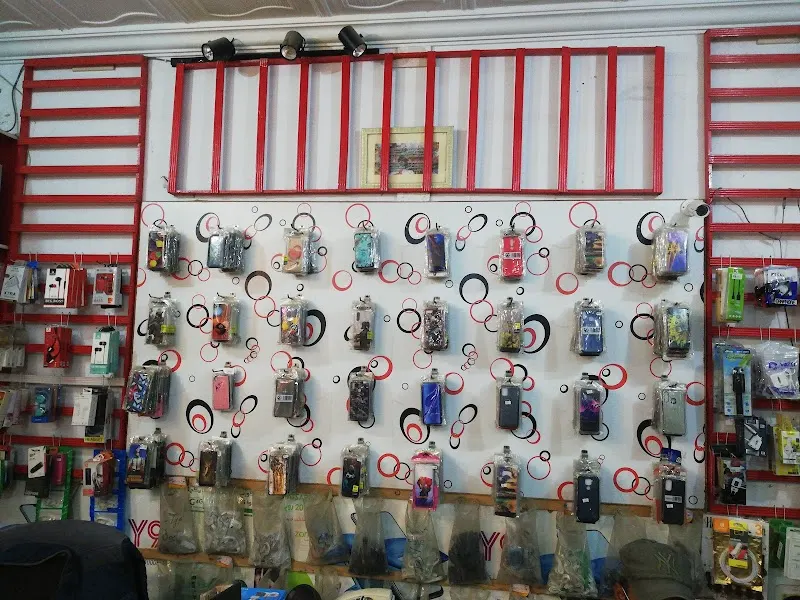
Bari Mobile Shop Vehari
Bari Mobile Shop Vehari is a Wheelchair Repair Service located in Vehari. with an average rating of 5 stars based on 70 customer reviews.
CineMechanics
CineMechanics is a Minneapolis-based camera rental house offering digital cinema cameras, lenses, lighting, and motion control equipment with service production...
Note the symptoms
Write down what goes wrong and when. Does it fail to start, overheat, or shut down during certain tasks? Clear details save diagnostic time.
Top rated
Highly rated near you

Lloyd Roofing, Inc.
Lloyd Roofing, Inc. is a roofing business serving Florida. Lloyd Roofing provides commercial and residential roof replacements, repairs, maintenance, and emerge...
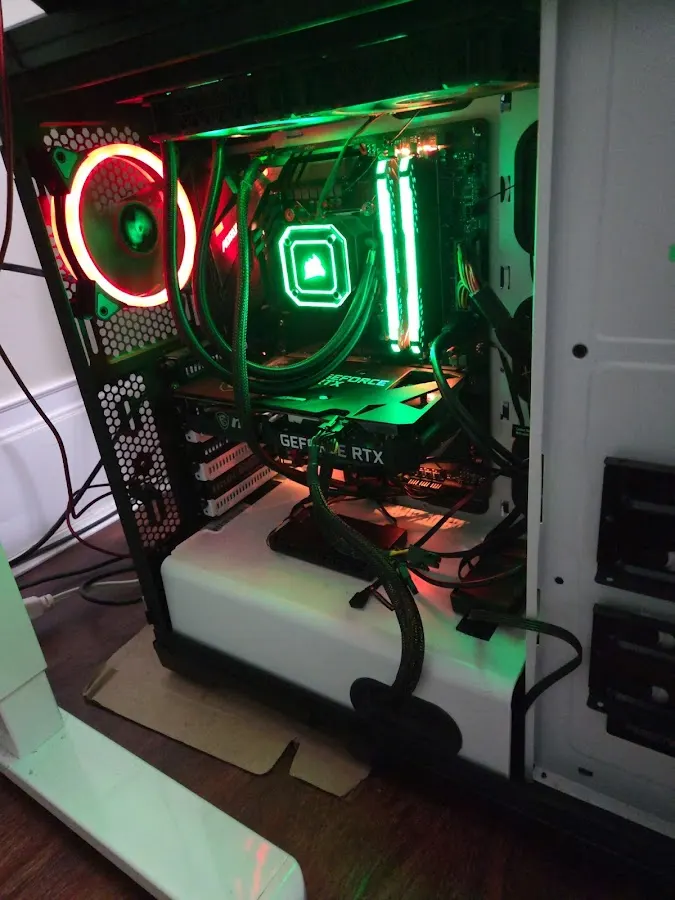
Computer Rx
Computer Rx is a computer repair and IT support business serving the Rhode Island area. Computer Rx provides computer crash recovery, malware removal, and hardw...

AAA Mechanical VT
AAA Mechanical VT is an HVAC and plumbing business serving Saint Albans City, VT, offering furnace, boiler, A/C, refrigeration, and plumbing repair and installa...
Decide how to handle passwords
The technician may need to log in to test the repair. If you would rather not share your password, ask whether they can test without it, or create a temporary account.
Before you choose
More businesses to compare
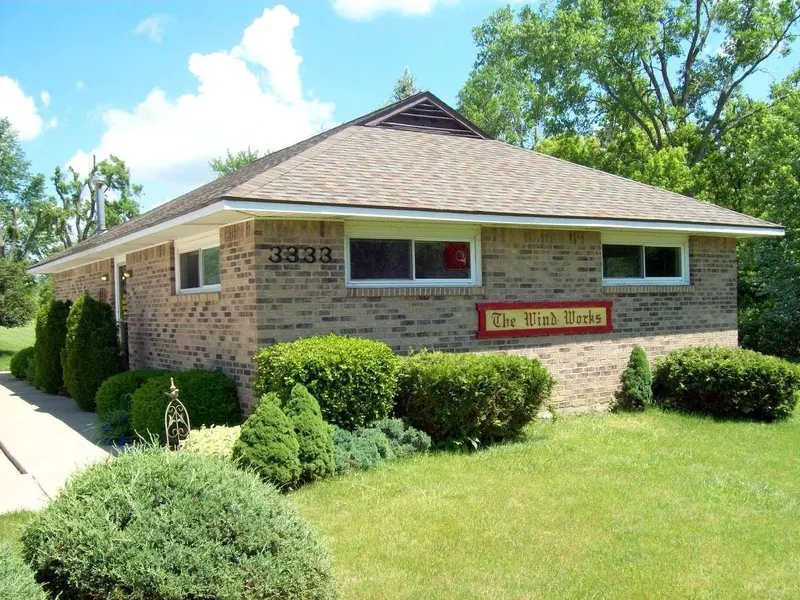
Wind Works
Wind Works is a band instrument business in Burton, MI offering sales, rental, repair, lessons, and brass finishing services for woodwinds and brasswinds.

The Tech Handyman
The Tech Handyman is a tech repair business serving Pensacola, specializing in iPhone, iPad, Mac, smartphone, and tablet repairs with a focus on customer servic...
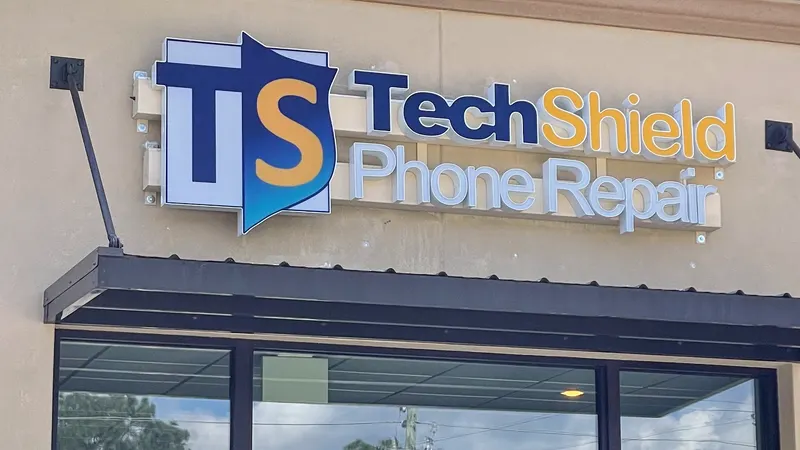
TechShield Phone Repair
TechShield Phone Repair is a phone repair business serving Pensacola, FL. TechShield Phone Repair provides iPhone, iPad, Samsung Galaxy, Apple Watch, and gaming...
Ask the right questions
Before agreeing to the work, make sure you understand the details.
- Is there a diagnostic fee?
- How long will the repair take?
- Are the parts new and genuine?
- Is the repair covered by a warranty?
Test it before you leave
When you collect the laptop, check that it starts, charges, connects to Wi-Fi and that the original problem is fixed.